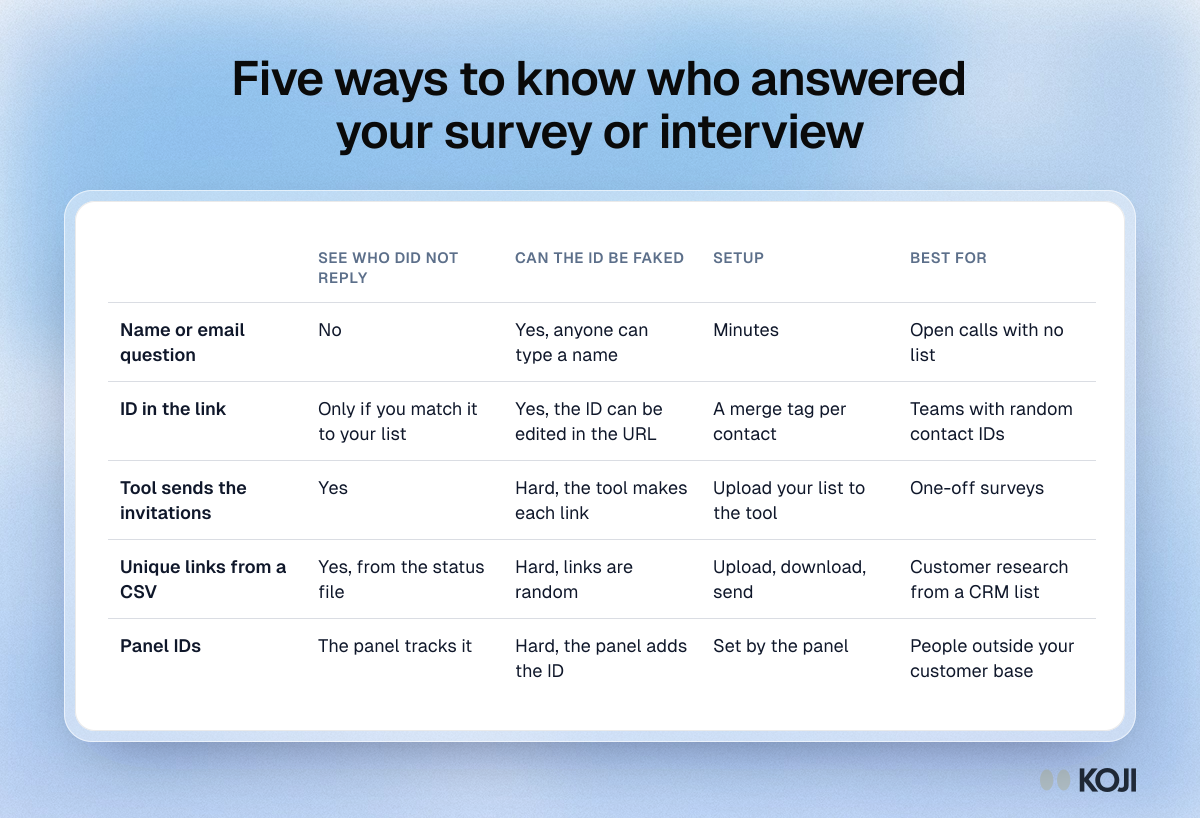
The short answer: to know who answered a survey or interview, give each person their own link. There are five common ways to do it: ask for a name, pass an ID in the link (URL parameters or pre-filled links), let the survey tool email everyone itself, generate a unique link per row of a CSV and send it from your own email tool, or rely on the IDs a recruitment panel adds. The first is the easiest and the weakest, because it can never tell you who stayed silent. The CSV route is the most flexible for customer research: you keep your own email tool, your list gets a link column you can use as a merge tag, and you get a status file back to update your CRM. Whichever way you choose, use random IDs that cannot be guessed, and tell people the link is personal.
If you are running interviews with your own customers this week, jump to Personal links in Koji for the setup. The rest compares all five, with what each tool's own help pages say.
Why it matters who answered
An anonymous link answers one question: what did the people who replied think? A personal link answers three more. Who replied and who did not. How the answers line up with what you already know about each person, such as their plan, tenure or the last support ticket. And who to follow up with when an answer raises a new question.

Photo by Kate Trysh on Unsplash
It also tends to lift replies. In an experiment with first-year university students, Dirk Heerwegh found that addressing email invitations to each person by name raised the web survey response rate by 7.8 percentage points (Heerwegh, Public Opinion Quarterly, 2005). A larger trial with more than 24,000 scientists and engineers found that personalised contacts raised the odds of responding by as much as 48%, and that changing the reminder wording over the field period raised them by more than 30% (Sauermann and Roach, Research Policy, 2013). Reminders only work if you know who has not answered yet, which takes a personal link.
There may be a cost, and the evidence on it is mixed. Heerwegh expected personalised invitations to change answers to a sensitive question and found no effect. Other studies have found that a personal greeting reduces what people disclose on sensitive items, while some could not replicate that (Richards et al., FCSM, 2015). The safe reading: on most product topics, being identified changes little, and on sensitive ones it can make people more careful. We come back to this at the end.
Five ways to know who answered
1. One public link and a name or email question
Everyone gets the same link, and the first question asks who they are. It takes two minutes to set up and works in every tool.
The weaknesses are real, though. You cannot see who did not reply, because there is no list to compare against. People mistype emails, skip the question or use a work address you do not have on file. And anyone can type anyone's name. Asking for identity up front also adds friction before the first real question.
Who it is for: open calls where you have no list, such as a link in a newsletter or a community post.
2. An ID in the link: URL parameters and pre-filled links
Most survey tools can read values from the link itself. Typeform calls these URL parameters (formerly hidden fields) and lists them as a free feature (Typeform help). SurveyMonkey has custom variables on its Web Link collector, and its help centre notes that you have to replace the placeholder values for each person yourself, by hand or with your own script (SurveyMonkey help). Google Forms lets you build a pre-filled link with some answers already entered (Google Docs Editors Help).
You add the ID to each person's link with a merge tag in your email tool, such as ?id={{contact_id}}. It works, with two catches. The ID is visible and editable in the address bar, so someone can change it. And if you use your own sequential IDs (101, 102, 103), anyone can guess the next one. Typeform's own help page warns against passing sensitive information this way. Never put an email address in a link.
Who it is for: teams that already have a unique, non-guessable ID per contact and are comfortable building merge tags.
3. The survey tool sends the invitations
Some tools email your list for you and give each recipient their own link. SurveyMonkey's Email Invitation collector inserts a unique link per contact so you can track who responded, and each contact can respond once (SurveyMonkey help).
This is the least setup. The catch is that the email comes from the survey tool rather than from you, so it can land in a different inbox tab, it does not carry your own sending reputation, and it sits outside the sequence your customers already get from your CRM or marketing tool.
Who it is for: one-off surveys to a list you are happy to upload into the survey tool.
4. Unique links generated from a CSV, sent from your own tool
You upload a CSV of the people you want to reach. The tool gives you the same file back with a new column holding each person's link. You send from your own email tool or CRM, using that column as a merge tag, and later download a status file to see who started and finished.
Zoho Survey does this for surveys on paid plans, with up to 1,000 entries per CSV (Zoho Survey help). Koji does it for AI-moderated interviews, covered below.
This route keeps the email in your own voice and your own tool, gives every person a link that cannot be guessed, and brings the results back in a form you can re-import. It needs one extra step: download the file, then send.
Who it is for: customer research with a list in a CRM, a billing system or a marketing tool, especially when you plan to chase people who have not replied.
5. IDs from a recruitment panel
If you recruit through a panel, the panel usually adds its own participant ID to your link so it can track completions and pay people. You know which panel member answered, not who they are, which is often the point.
Who it is for: research with people outside your customer base.
Before you send personal links
A few rules prevent most problems, whichever method you use.
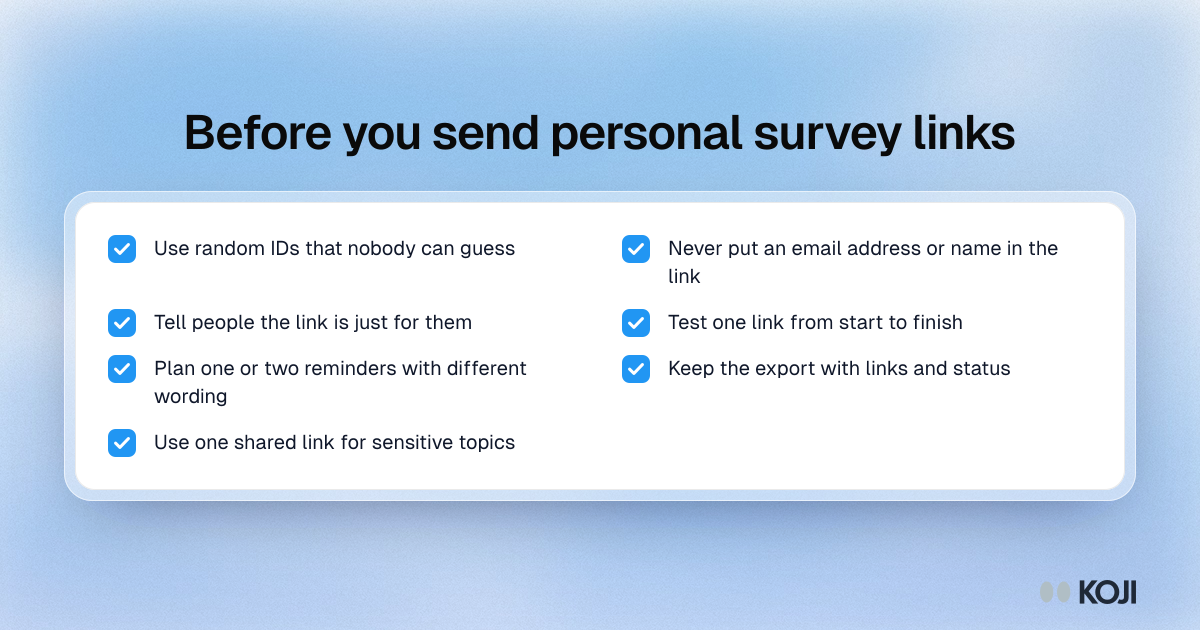
- Use random IDs. A link should not reveal anything about the person or let anyone guess another link.
- Never put an email address or name in the URL. Links get forwarded, logged and pasted into chats.
- Tell people the link is personal. Say in the email that the link is just for them and that their answers are tied to their account. It is honest, and it reduces forwarding.
- Test one link from start to finish before you send the batch.
- Plan one or two reminders to the people who have not started, with different wording each time.
- Keep the export. The file with links and status is how you update your CRM and pick who to chase.
- Offer a shared link for sensitive topics. If the study asks about something people may not want tied to their name, use one anonymous link instead.
If you need email wording, our recruitment email templates include invitation and reminder copy.
Personal links in Koji
Koji gives each person on your list a private interview link. Here is the flow, verified in the product as of this writing:
- Upload your list. Use Import CSV on the Participants table of a study's Self-recruit tab, or open the share sheet, choose "I'll share my own link" and switch to A link per person. A plain list of emails works too. Each upload takes up to 500 rows and 50 columns, in comma, semicolon or tab separated files.
- Download it with links. You get your file back with an Interview link column. Extra columns you uploaded are kept with each person.
- Send from your own tool. Use the link column as a merge tag in HubSpot, Mailchimp, Gmail or whatever you already send from. No integration or API work is needed.
- Watch who has not started. People who have not started their interview show as Not started, with their own filter, and you can copy or remove any single invite. Download latest status gives you the original columns plus link, response status, and start and completion times, ready to re-import into your CRM.
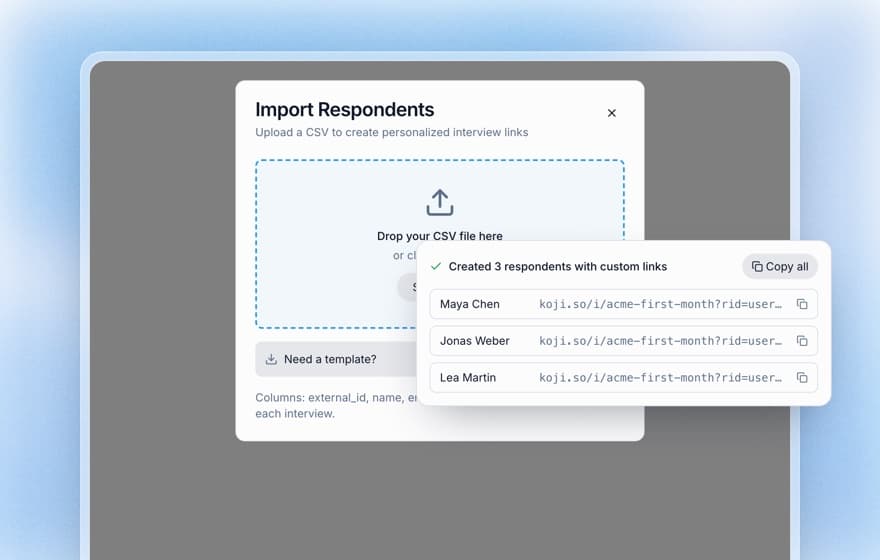
Each link opens the normal interview landing page, where the person chooses text or voice. The interview is tied to that person and does not show the Anonymous badge. Links use random IDs, so one cannot be worked out from another. Uploading the same people again reuses their existing links rather than creating duplicates. The study has to be published before links work; the share sheet tells you if it is still a draft.
Personal links are on the Interviews and Enterprise plans. The setup guide is in Personalized interview links, and Importing participants from a CSV covers the file format.
When to stay anonymous
Personal links are the right default for customer research: churn interviews, onboarding studies, win-loss calls and anything where you want to join answers to account data or follow up. Stay with one shared, anonymous link when the topic is sensitive enough that being identified would change what people say, such as questions about their manager, their pay, or a mistake they made. The mixed evidence on personal greetings and self-disclosure is reason enough to be careful there.
You can also split it: personal links for the main study, and a separate anonymous link for the part where candour matters most. If you do keep identified data, our guide to anonymizing customer interview data covers how to strip names before you share findings.
Try it on your next churn or onboarding study
Export the list of customers you want to hear from, with their plan and signup date as extra columns. Upload it to a Koji study, download the file with links, and send it from the tool you already use. A week later, download the status file and send one reminder to everyone marked Not started. Start a study on Koji and open the share sheet to switch to A link per person.