Process
How to use Chat with Koji in five steps
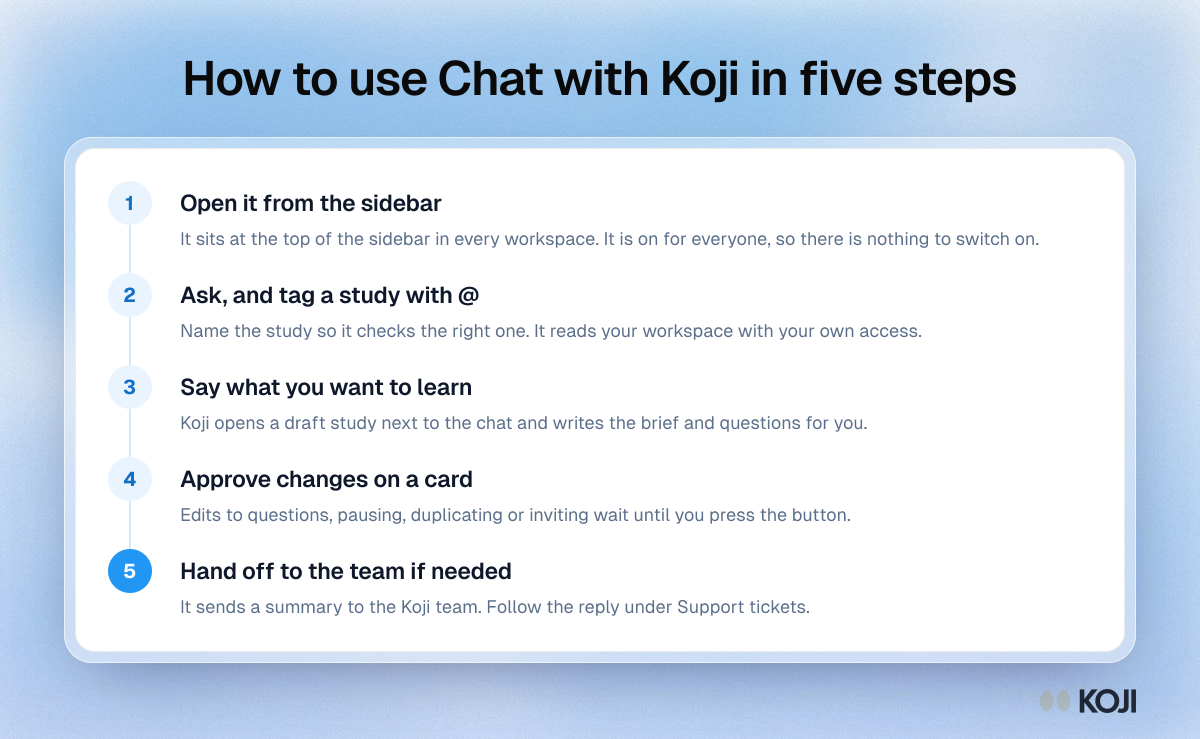
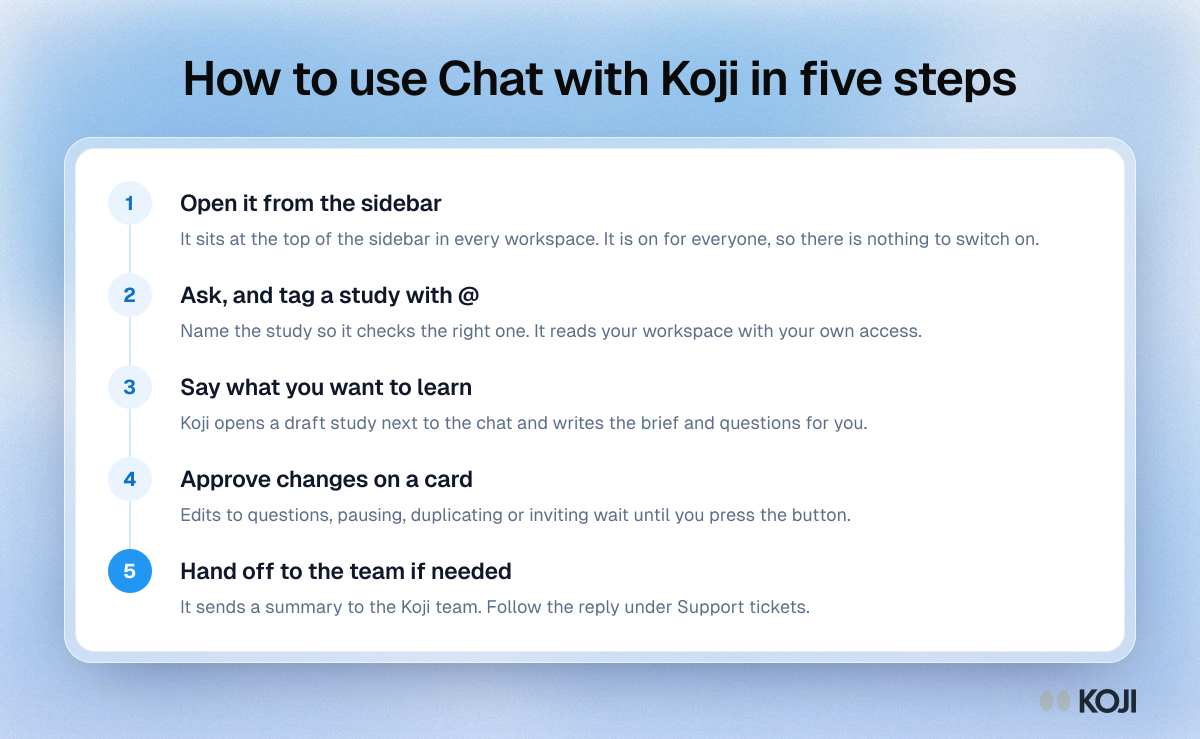
A five-step guide to Chat with Koji, the assistant inside the Koji app. It shows where to find it, how to point it at a study, how to start a new study by saying what you want to learn, how approval cards work, and how to pass a problem to the Koji team. Use it as a quick reference the first time you open the chat.
Where this appears
What's in this process
- Open it from the sidebar: It sits at the top of the sidebar in every workspace. It is on for everyone, so there is nothing to switch on.
- Ask, and tag a study with @: Name the study so it checks the right one. It reads your workspace with your own access.
- Say what you want to learn: Koji opens a draft study next to the chat and writes the brief and questions for you.
- Approve changes on a card: Edits to questions, pausing, duplicating or inviting wait until you press the button.
- Hand off to the team if needed: It sends a summary to the Koji team. Follow the reply under Support tickets.
Use this image
Free to use in your docs, decks and posts under CC BY 4.0, as long as you credit Koji with a link to this page. To embed it, paste this into your page:
html
<a href="https://www.koji.so/visuals/chat-with-koji-how-to-use-steps"><img src="https://www.koji.so/visuals/chat-with-koji-how-to-use-steps/chat-with-koji-how-to-use-steps.png" alt="Process showing five steps to use Chat with Koji: open it from the sidebar, ask with @, say what you want to learn, approve changes and hand off to the team." width="1200" height="739" /></a>
<p>Source: <a href="https://www.koji.so/visuals/chat-with-koji-how-to-use-steps">How to use Chat with Koji in five steps</a>, Koji</p>