Chat with Koji: Ask About Your Studies and Get Things Done
Chat with Koji is the in-app assistant that answers questions about your studies, reports and credits, pauses or duplicates a study once you confirm, and hands problems to the Koji team.
Chat with Koji is an assistant built into the Koji app that answers questions about your own studies, interviews, reports, credits and plan, and makes simple changes for you, such as pausing or duplicating a study, after you confirm them on a card. When it cannot solve something, it writes up the problem and hands it to the Koji team, and you follow the reply under Support tickets. It is in early access (marked Alpha), so you turn it on for yourself in Workspace settings under Experimental, and you should double-check anything important it tells you.
This guide covers what the assistant can and cannot do, how to switch it on, how to ask good questions, how confirmations work, and how the hand-off to a person works.
What Chat with Koji is for
Most questions people have inside a research tool are about their own work, not about the tool in general. "Why has my study stopped getting responses?" "How many credits do I have left?" "What did people say about onboarding in the March study?" A help center article can explain how response limits work, but it cannot look at your study and tell you that it hit its limit yesterday.
That is the gap Chat with Koji fills. It reads your workspace, with the same access you have, and answers from what it finds. Harvard Business Review research found that 81% of customers try to sort out a problem themselves before they contact a person ("Kick-Ass Customer Service", Harvard Business Review, 2017). The assistant is built for that moment: you ask in plain words, it checks, and it either answers, fixes the issue with your confirmation, or passes it on with the context already written down.
It sits next to the other AI help in Koji rather than replacing it. The AI consultant inside a study edits your research brief and interview guide. Chat with Koji works across the whole workspace and is the place to ask about status, results, credits, people and support.
Who can use it
- Plans: it is open to every plan in the Koji app, including Free. Using the chat does not use credits.
- Access: it is opt-in per person. Turning it on changes nothing for your teammates, and it follows you into every workspace you belong to.
- Where it is not offered: if your company runs Koji in its own dedicated Enterprise setup, the chat is not available there yet, and the Experimental page says there is nothing to try.
- Early access: it is an early version. Answers can be wrong, and the feature may change.
How to turn it on
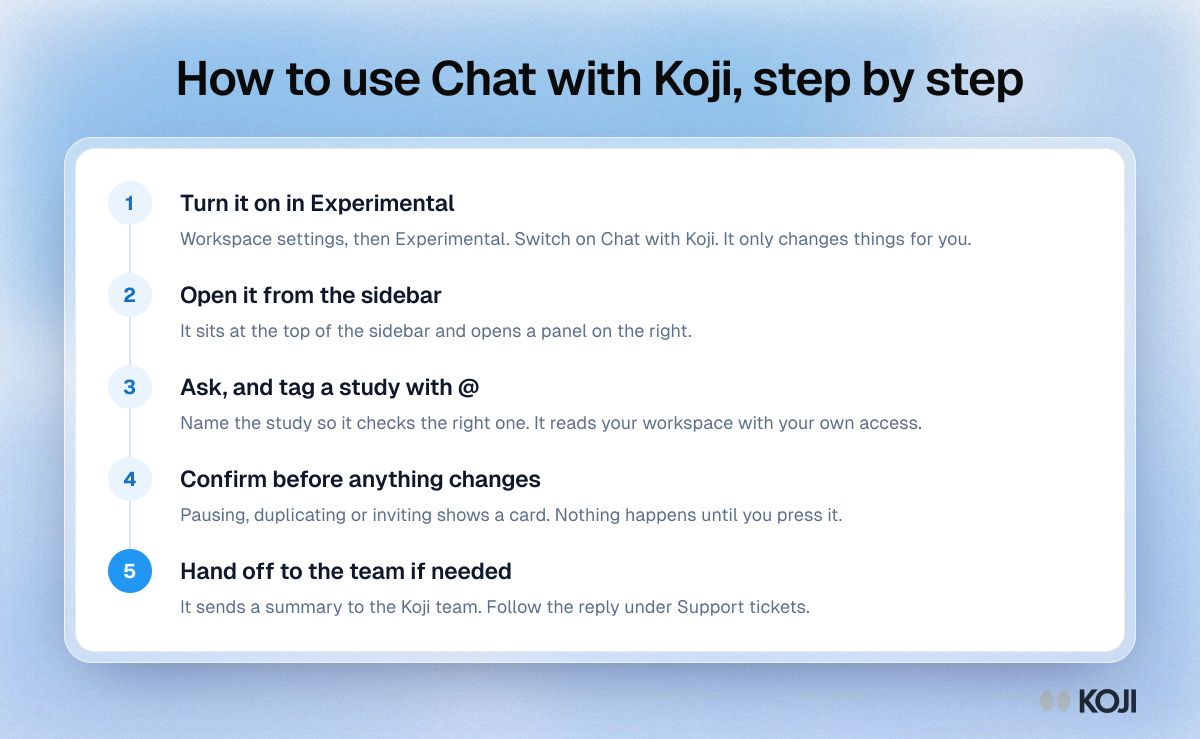
- Open your workspace and go to Workspace settings.
- Choose Experimental in the settings menu.
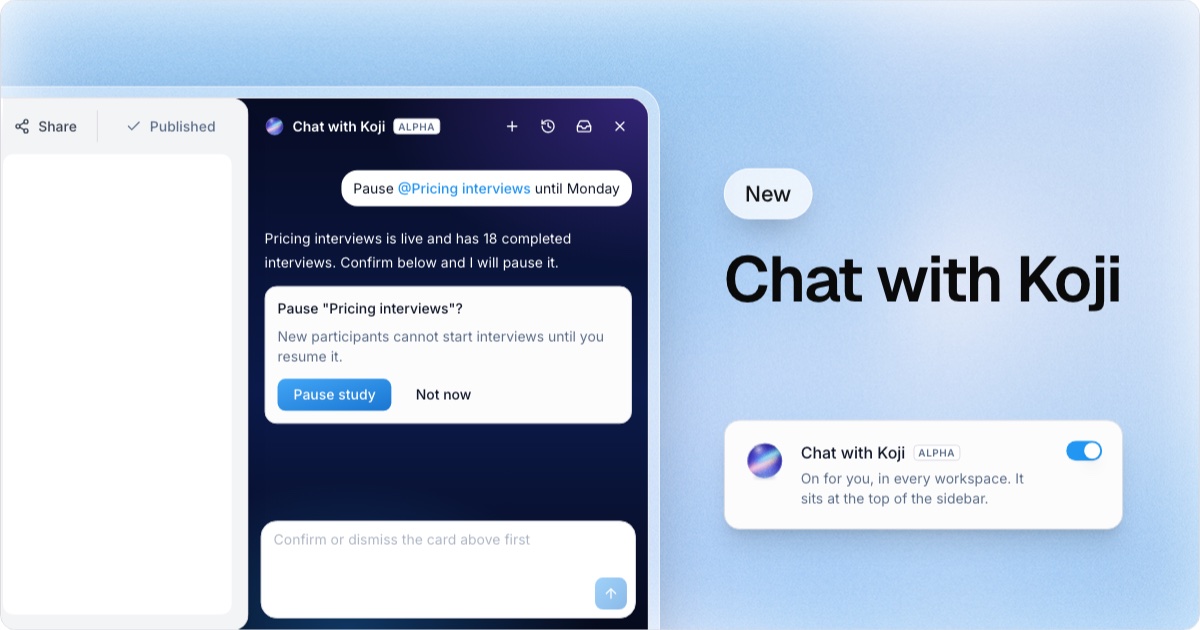
- Find the Chat with Koji card (tagged Alpha) and switch it on.
- The chat panel opens straight away, and from now on Chat with Koji sits at the top of the sidebar.
You can also switch it on from the "Meet Chat with Koji" entry on the Updates page. To turn it off, go back to Experimental and flip the switch again.
Opening the chat and starting a conversation
Click Chat with Koji at the top of the sidebar to open the panel on the right of the screen. Click it again, or the close button, to hide it. When the sidebar is collapsed, the assistant shows as a small orb icon.
An empty chat offers a few starter prompts, such as "What can you do for me?", "How many credits do I have left?" and, when you have a study open, "Review this study and suggest improvements".
The panel header has three buttons:
- New chat starts a fresh conversation.
- History lists your past chats, up to the 30 most recent. History is kept in the browser you used, so a chat started on your laptop will not show on another computer.
- Support tickets lists the conversations you have handed to the Koji team. A dot appears when there is an unread reply.
The assistant also knows which page you are on, so "this study" means the study you have open.
Pointing it at a study with @
Type @ in the message box to pick a study from your workspace by name. The study is attached to your message, so the assistant looks at that exact study instead of guessing. This helps most when two studies have similar names, or when you are asking from a page that is not the study itself.
Example prompts that work well:
- "Is @Onboarding interviews still accepting participants? If not, why?"
- "Summarise the main findings in @Pricing research for my manager."
- "What did participants in @Trial churn say about setup?"
- "Review the questions in @Concept test and tell me which ones are too leading."
What it can look up
The assistant reads your workspace with your own permissions. It can:
- Check a study's status and list every reason it is not taking interviews, such as being closed, archived, at its response limit, still a draft, or the workspace being out of credits. It also gives you the interview link and the number of completed interviews.
- Read a study's setup: the brief, the interview guide with its question types and follow-ups, screeners, languages, response limit and rewards. That is what powers "review this study" requests. If you use structured questions, it sees each question's type.
- Read the report: the summary, key takeaways, themes, findings and recommendations.
- Read interviews: the most recent completed interviews with their quality, themes and a short summary, and one interview's answers question by question.
- Check rewards: how participant payouts stand on a study.
- Answer questions about Koji by searching the documentation, and check your plan, role and credit balance.
Participants stay anonymous in the chat. They appear as labels such as "Participant #a1b2c3", and names, emails and phone numbers are removed before the assistant sees the data.
What it can do for you, with your confirmation
Some requests change something. For those, the assistant never acts on its own. It shows a card that says exactly what will happen, and nothing changes until you press the button on it.
| Action | What the card says happens | Who can do it |
|---|---|---|
| Pause a study | New participants cannot start interviews until you resume it | Anyone with edit access to the study |
| Resume a study | The interview link starts accepting participants again | Anyone with edit access to the study |
| Duplicate a study | Copies the setup and interview guide. Interviews are not copied | Anyone with edit access, within the plan's study limit |
| Invite a teammate | Sends an email invitation, with a role you choose on the card | Owners and admins, on plans that include teammates |
| Open the billing portal | Opens invoices, payment method and cancellation in a new tab | The workspace owner |
| Switch workspace | Your studies and settings change to that workspace | Anyone who belongs to more than one workspace |
If an action is not open to you, the assistant says why in one sentence and points you to the fix, for example a button to the billing page if you are the owner, or a note to ask the owner if you are not. You can dismiss any card, and the assistant will not offer it again unless you ask.
The message box is locked while a card is waiting, so you always confirm or dismiss before the conversation moves on.
When it hands you to the Koji team
Some problems need a person: something that looks broken, a billing dispute or refund, or anything that needs access the assistant does not have. In those cases, or if you ask for a person, the assistant first asks a couple of short questions so the team will not have to write back for details. Which study is it? What did you do, and what happened instead?
It then shows a Send this to the Koji team? card with a summary of the problem. Our team sees that summary and your chat. If the chat read study results, the assistant's own replies are left out of the ticket, so participant answers stay out of support conversations.
After you send it:
- A confirmation says the ticket went to the Koji team.
- The ticket appears under Support tickets in the panel header, with a status such as In progress, Waiting for your reply, On hold or Resolved.
- Open a ticket to read the team's reply and answer it in the same thread.
If you ask about Enterprise, such as SSO, security reviews, data residency or invoicing, the assistant asks a few questions about your team and volume, passes them to the sales team, and offers a button to book a call.
Tips for better answers
- Name the study with @ rather than describing it.
- Ask one thing at a time. The assistant proposes one action per message.
- Ask it to check, not to remember. "Check why @Pricing research has no new responses" gets a live answer from your workspace.
- Verify before you act on big decisions. It is early access. For anything you will share widely, open the report and check the evidence behind each finding.
- Use the study's own consultant for brief edits. To rewrite questions or change follow-ups, the AI consultant inside the study is the right tool.
Limits to know about
- It only proposes the actions in the table above. It cannot edit your interview guide, delete anything, or change your plan.
- It sees only what you can see. If a study belongs to a workspace you are not in, it cannot read it.
- Chat history lives in your browser. Clearing your browser data, or signing out, removes it. Tickets you sent to the team are kept.
- It will not ask for passwords, card numbers or API keys. Never paste them into the chat.
Related Resources
Related Articles
Duplicating a Study in Koji: Copy a Study for a New Wave
How to duplicate a research study in Koji: what the copy keeps, what stays with the original, and how to rerun the same interview for a new wave or segment.
Quick Start Guide
Go from zero to your first AI-powered interview in about 10 minutes.
How to Read Your Koji Research Report: A Section-by-Section Guide
A complete walkthrough of every section in a Koji research report — from the overview and themes to quantitative charts, key quotes, and the quote behind every claim, so you can extract maximum value from your findings.
Structured Questions in AI Interviews
Mix quantitative data collection — scales, ratings, multiple choice, ranking — with AI-powered conversational follow-up in a single interview.
Understanding Usage & Credits
Learn how Koji's credit system works — what actions cost credits, how limits are tracked, and how to manage your research budget effectively.
Creating Your Account
Sign up for Koji with Google or email and set up your profile in under a minute.