Changing Your Brief With the AI Consultant: What You Can Ask For
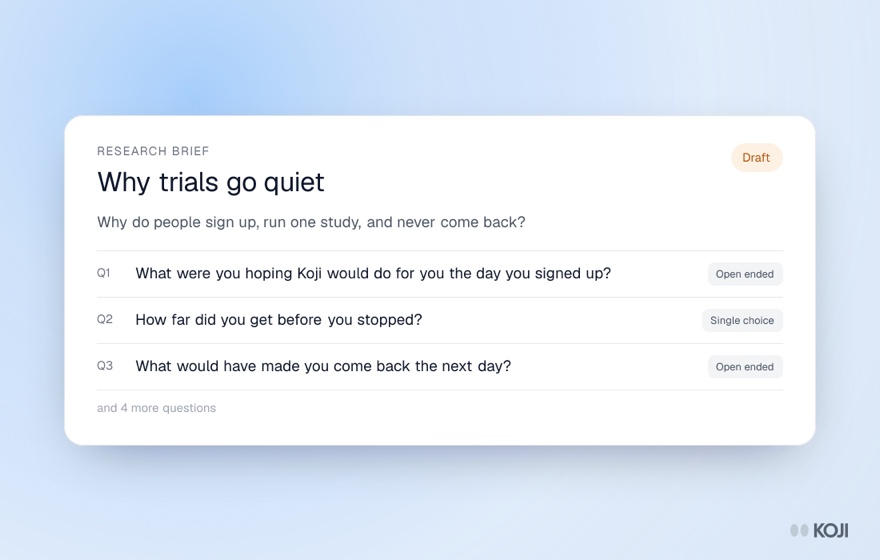
Ask Koji's AI Consultant to edit questions, follow-up depth, screening questions and the interview opening or closing. It changes only what you name and tells you what it changed.
You can ask Koji's AI Consultant to change any part of your research brief in plain words: add, edit, remove or reorder questions, change how many follow-ups a question gets, add a screening question, or rewrite how the interview opens and closes. It changes only the thing you name, leaves the rest of the brief alone, and tells you in one line exactly what it changed. If you ask it a question about the brief instead, it answers without editing anything. It's included on every plan, Free included.
This guide is a reference for those requests: what you can ask for, what happens when you do, and how to check the result before you publish.
Why change the brief by chat at all?
You can always edit the brief manually, and for a one-word fix that's often quicker. Chat is better when the change has knock-on effects or needs research judgement:
- "Make Q4 less leading." The Consultant rewrites the wording and keeps the question type, options and follow-up setting as they were.
- "We only want people who cancelled in the last 90 days." That's a screening decision, and the Consultant will think through who it turns away before adding anything.
- "The interview feels too long." It can cut follow-ups on factual questions instead of deleting the questions you care about.
Traditional survey builders make you do all of this by hand, question by question. In Koji the brief is the instruction set for an AI interviewer that asks follow-up questions on its own, so small wording and depth choices matter more, and having a research-trained assistant make them is worth a lot.
How the Consultant refers to your questions
The brief panel shows two numbered sections, and the Consultant uses the same labels you see:
- Screening questions are numbered S1, S2, S3.
- Interview questions are numbered Q1, Q2, Q3.
The two lists are numbered separately, so "Q1" is always your first interview question, even when the study has screeners above it. If you mean a screener, say "S2" or "screening question 2". When the Consultant reports a change, it names the question by its label and text, for example "Removed S1, 'Are you a dog owner?'", so the chat keeps a record of which question it touched.
What you can ask it to change
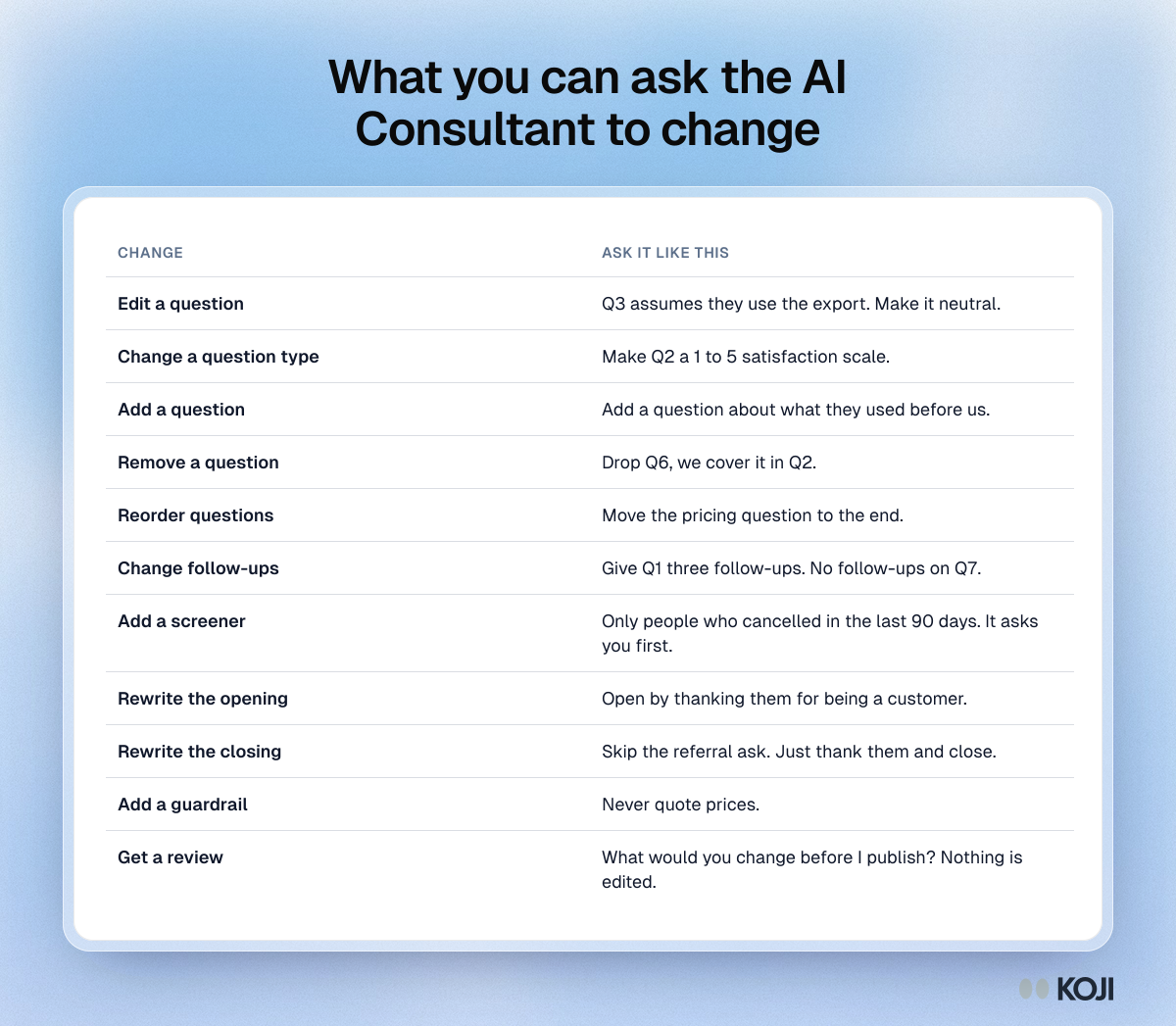
Here's what the Consultant can do on request, with a sample prompt for each.
Edit a question
Name the question and say what's wrong. "Q3 assumes they already use the export, can you make it neutral?" The Consultant rewrites that question in place. It keeps the question's other settings unless you ask for a change, so turning an open question into a scale, or a scale into a single choice, is a separate, explicit request: "Make Q2 a 1 to 5 satisfaction scale."
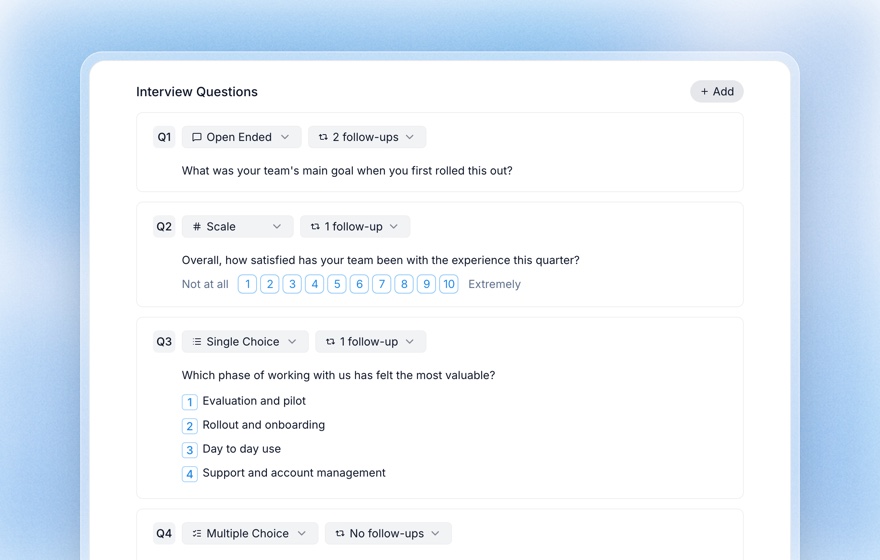
Koji supports six structured question types: open ended, scale, single choice, multiple choice, ranking and yes/no. You can ask for any of them by name.
Add, remove or reorder questions
- Add: "Add a question about what they used before us." New questions go into the interview questions list.
- Remove: "Drop Q6, we cover it in Q2."
- Reorder: "Move the pricing question to the end." The Consultant changes the order without touching the wording.
Change follow-up depth
Every interview question has a follow-up setting: none, 1, 2 or 3 follow-ups. The default for most questions is 1. You'll see the current number on each question's card, and the Consultant reads the same live value, so "How many follow-ups does Q2 have?" gets the real answer, not a guess at the default.
To change it, ask directly: "Give Q1 three follow-ups" or "No follow-ups on Q7." A good rule of thumb, and the one the Consultant applies when it drafts:
- 0 follow-ups for quick factual questions.
- 1 follow-up for most questions.
- 2 or 3 only for the richest open questions, the "tell me about the last time..." ones where stories matter.
Screening questions never have follow-ups. A screener is scored from the answer alone, with no interviewer in the loop, so there's nothing to set, and the Consultant won't offer to change it. For more on how depth plays out in a live interview, see probing and follow-up questions.
Add a screening question
Screening questions decide who gets into the study at all. Someone who fails one is turned away before the interview starts. That's useful, and also expensive when it's wrong: an over-tight screener is one of the most common reasons a study struggles to fill.
So the Consultant handles screeners differently from every other change. It asks first. When you request one, or when it thinks you need one, it tells you what it would screen on and who that would exclude, then waits for your yes. Only on the next turn does it add the question. When it does, it says plainly who the screener lets in and who it turns away.
Good screeners from the Consultant have a few things in common:
- They screen on what people do, not demographics, unless a demographic really is the point.
- They're single or multiple choice, with every answer marked as qualifying or disqualifying.
- The qualifying answer isn't obvious, so people can't guess their way in.
Screening questions are available on all plans for studies created on or after 5 September 2026. If your study is older, duplicate it: the copy is a new draft with the same brief and can use screeners. The full setup is in adding screening questions to your study.
Rewrite the opening or closing
The brief includes an opening approach (how the interviewer introduces the study and warms up) and a closing approach (how it wraps up). Ask for a change and the Consultant revises the current text rather than starting from scratch:
- "Open by thanking them for being a customer for over a year."
- "Don't ask for a referral at the end, just thank them and close."
It rewrites the opening or closing itself. It won't paper over the request by adding a guardrail that contradicts the old text, which would leave the interviewer with two conflicting instructions.
Change topics, guardrails or scope
You can also ask it to add a topic to explore, add a guardrail ("never quote prices"), or mark something out of scope. When it edits one of these lists, it keeps the entries you already have. See setting interview guardrails for what guardrails are good for.
It changes only what you asked for
When you ask for one change, the Consultant sends that change and nothing else. A follow-up tweak won't quietly reword your problem statement, and editing Q3 won't revert an edit you made by hand to Q5. Fields you didn't mention keep exactly the wording you gave them.
After each change, the chat shows a step that names what moved, such as "Edited 1 interview question", "Removed 1 screening question" or "Updated opening approach". Open the step to see the before and after. The Consultant's reply is short, a sentence or two on what it did, because the brief panel already shows the full result.
Asking a question is not an edit
Not every message is a request to change something. When you ask "Is this complete?", "Any duplicates?" or "Would a senior researcher run this?", the Consultant answers as a reviewer and leaves the brief untouched. You get a verdict first, then two or three specific points about named questions.
If it recommends edits, it asks whether to make them ("Want me to tighten Q3 and add a screening question?") and stops. Nothing changes until you say yes. That way you can get an honest review without the brief shifting under you.
Keep typing while it works
You don't need to wait for a reply before sending your next thought. Messages you type while the Consultant is working appear in the chat, slightly faded, and are sent one at a time, in order, as each reply finishes. If one of them fails, it's marked on that message and the rest still go through.
This makes a run of small fixes fast: "Shorten Q2", "Q4 should be multiple choice", "No follow-ups on Q7", sent back to back.
Step by step: a typical refinement session
- Open your study's brief. The chat is on one side and the brief on the other.
- Ask for a review first. "What would you change before I publish?" You get a short verdict and named suggestions, and nothing is edited.
- Accept or redirect. Say yes to the suggestions you want, or ask for something different.
- Make targeted edits by label. "Q3: make it about the last time, not in general." "Two follow-ups on Q1."
- Decide on screening. If you need a screener, ask for one, read who it excludes, then confirm.
- Check each step in the chat. Open the change steps to confirm only what you asked for moved.
- Preview the interview. Take it yourself from the Preview tab. Previews are free and don't count as responses.
- Publish when the preview feels right. See publishing your study.
Tips for better results
- Name the question. "Q4" beats "the pricing one" when you have twelve questions.
- One intent per message. Queued messages make this painless, and each step stays easy to check.
- Say why. "Q2 is too long for a voice interview" gets a better rewrite than "shorten Q2".
- Give it context. Upload context documents such as support tickets or past reports, and its suggestions get more specific.
- Mix chat and manual edits freely. Your manual edits stay as they are when you go back to the chat.
For the wider habits that make design sessions productive, read working with the AI Consultant.
Related Resources
- Structured questions in AI interviews: the six question types and when to use each
- Working with the AI Consultant: conversation habits for designing a study
- Understanding the research brief: what each section of the brief does
- Editing the brief manually: direct changes without the chat
- Adding screening questions to your study: qualify and disqualify rules in detail
- Previewing your interview: test the result before you publish
Related Articles
Adding Screening Questions to Your Study
How to add screening questions to a Koji study: write single or multiple choice screeners, mark qualifying and disqualifying answers, and turn away the wrong participants before the interview starts.
Editing the Brief Manually
How to directly edit your research brief to fine-tune questions, methodology, target audience, and more.
Previewing Your Interview Before You Share It
Use Koji's free Preview tab to take your own AI interview by text or voice before launch. Previews never use credits, never count as responses and never appear in reports.
Structured Questions in AI Interviews
Mix quantitative data collection — scales, ratings, multiple choice, ranking — with AI-powered conversational follow-up in a single interview.
Understanding the Research Brief
A walkthrough of every section in your Koji research brief and how to read it effectively.
Working with the AI Consultant
Tips and strategies for chatting effectively with Koji's AI Consultant to design a strong research study.