Process
Setting up client brand themes for AI interviews
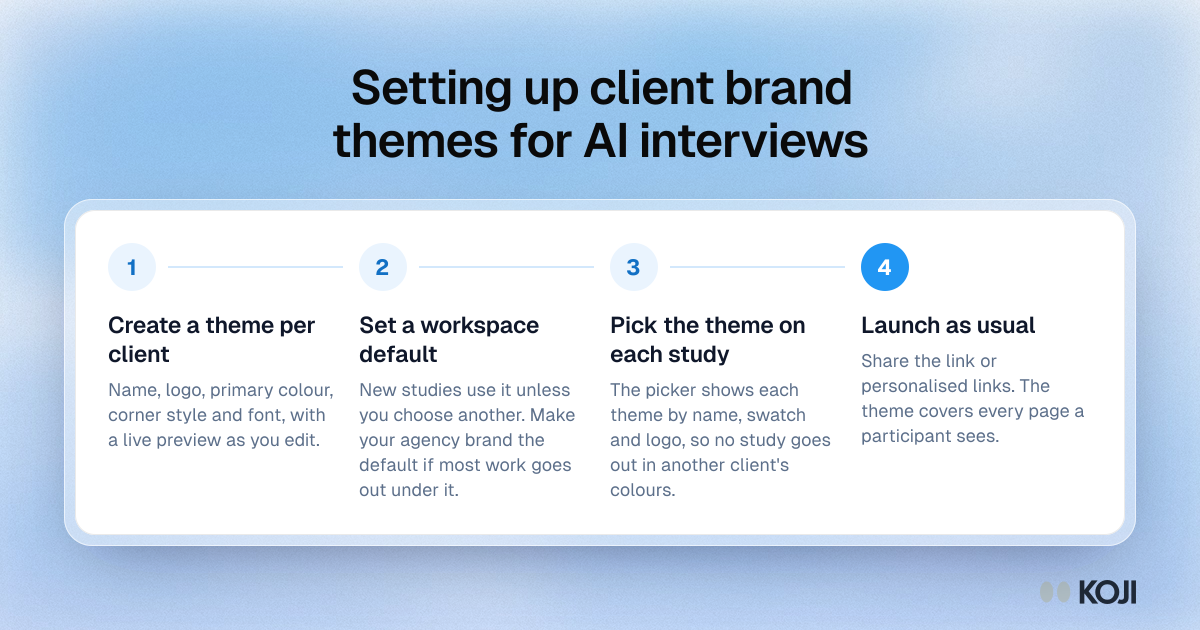
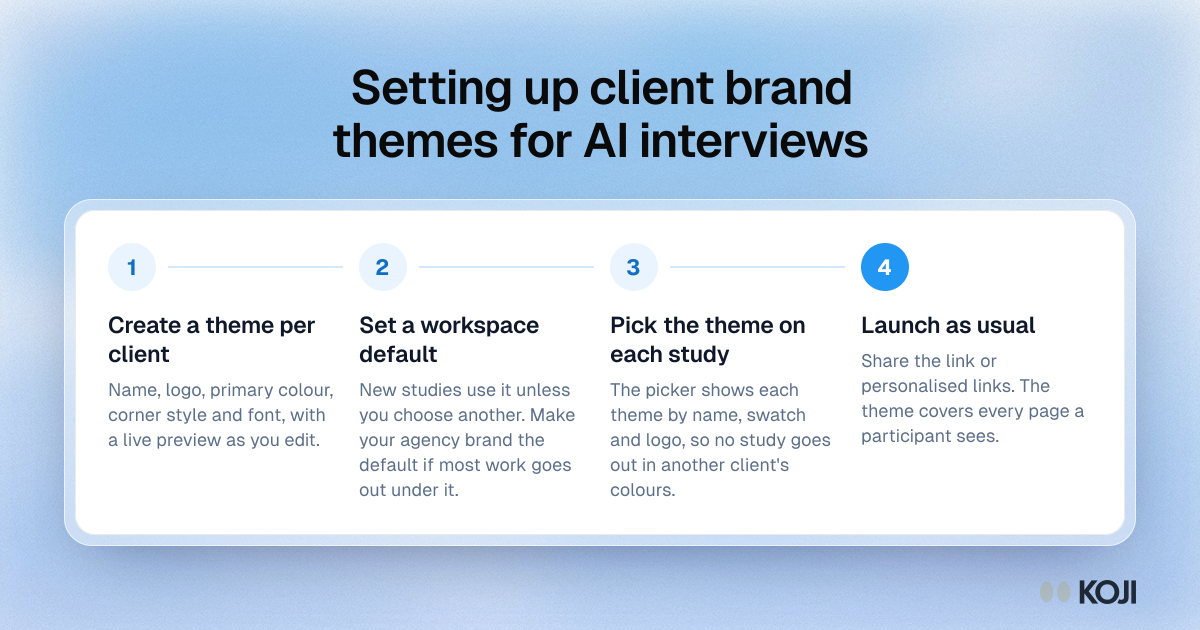
A four-step guide for agencies and multi-brand teams running AI interviews under a client's brand in Koji. Create one theme per client with logo, colour, corner style and font, set a workspace default, choose the theme on each study, then launch with a shared or personalised link. Participants see the client's brand on the welcome screen and through text and voice interviews.
Where this appears
What's in this process
- Create a theme per client: Name, logo, primary colour, corner style and font, with a live preview as you edit.
- Set a workspace default: New studies use it unless you choose another. Make your agency brand the default if most work goes out under it.
- Pick the theme on each study: The picker shows each theme by name, swatch and logo, so no study goes out in another client's colours.
- Launch as usual: Share the link or personalised links. The theme covers every page a participant sees.
Use this image
Free to use in your docs, decks and posts under CC BY 4.0, as long as you credit Koji with a link to this page. To embed it, paste this into your page:
html
<a href="https://www.koji.so/visuals/brand-themes-client-interviews-setup-steps"><img src="https://www.koji.so/visuals/brand-themes-client-interviews-setup-steps/brand-themes-client-interviews-setup-steps.png" alt="Four-step process for client-branded AI interviews in Koji: create a theme per client, set a default, pick the theme per study, then launch." width="1200" height="630" /></a>
<p>Source: <a href="https://www.koji.so/visuals/brand-themes-client-interviews-setup-steps">Setting up client brand themes for AI interviews</a>, Koji</p>